Passwords vs. Passkeys
Every visit answers the same question, even when nobody asks it out loud: what is protecting this account, and is it any good?
What a password really is
A password is a secret you and the website both hold. That is the flaw. The website keeps a copy to check against, and anyone who obtains that copy can use it exactly as well as the customer can.
Two things follow, and they are the whole argument for a password manager:
- Unique per site, so one breach costs one account instead of all of them.
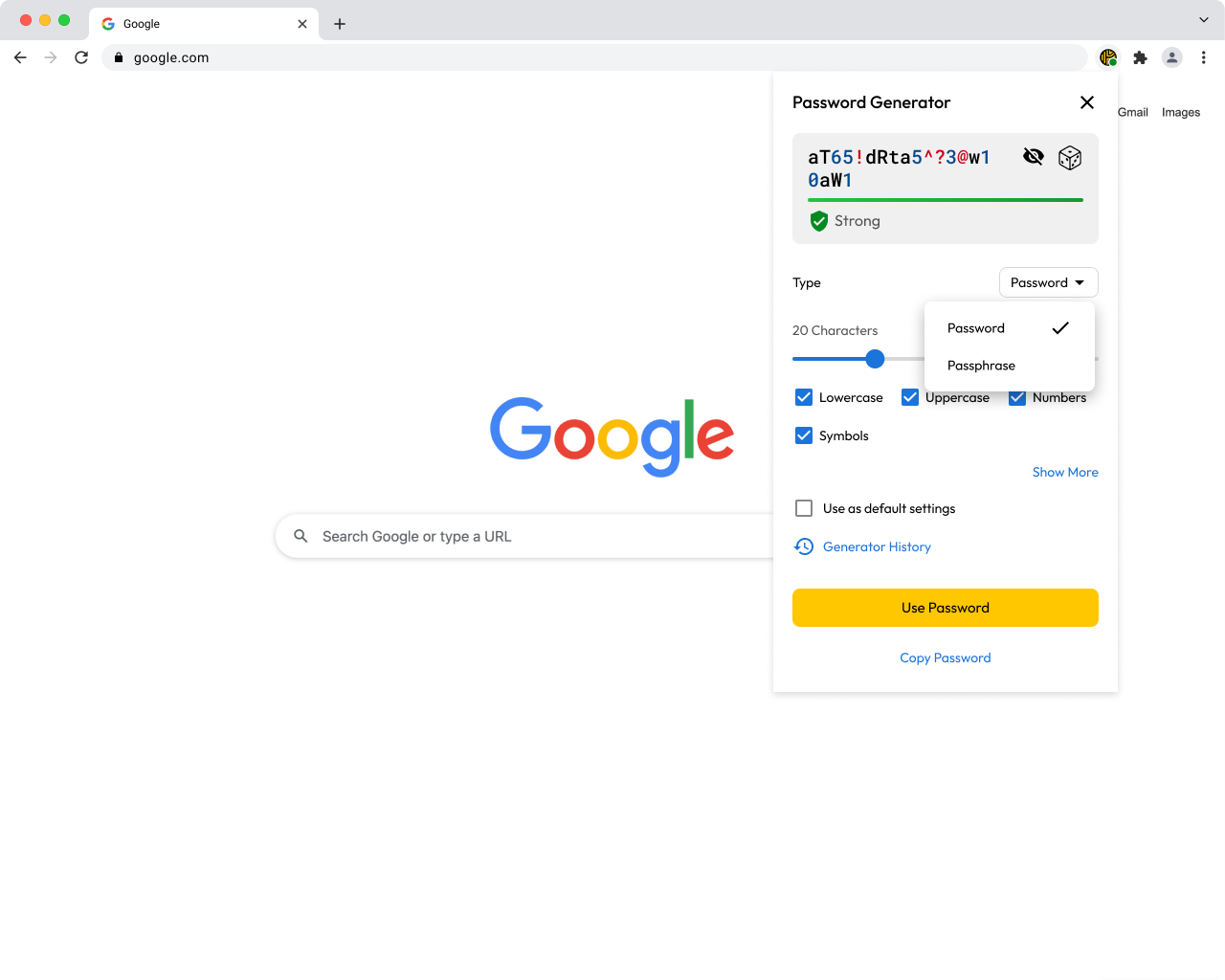
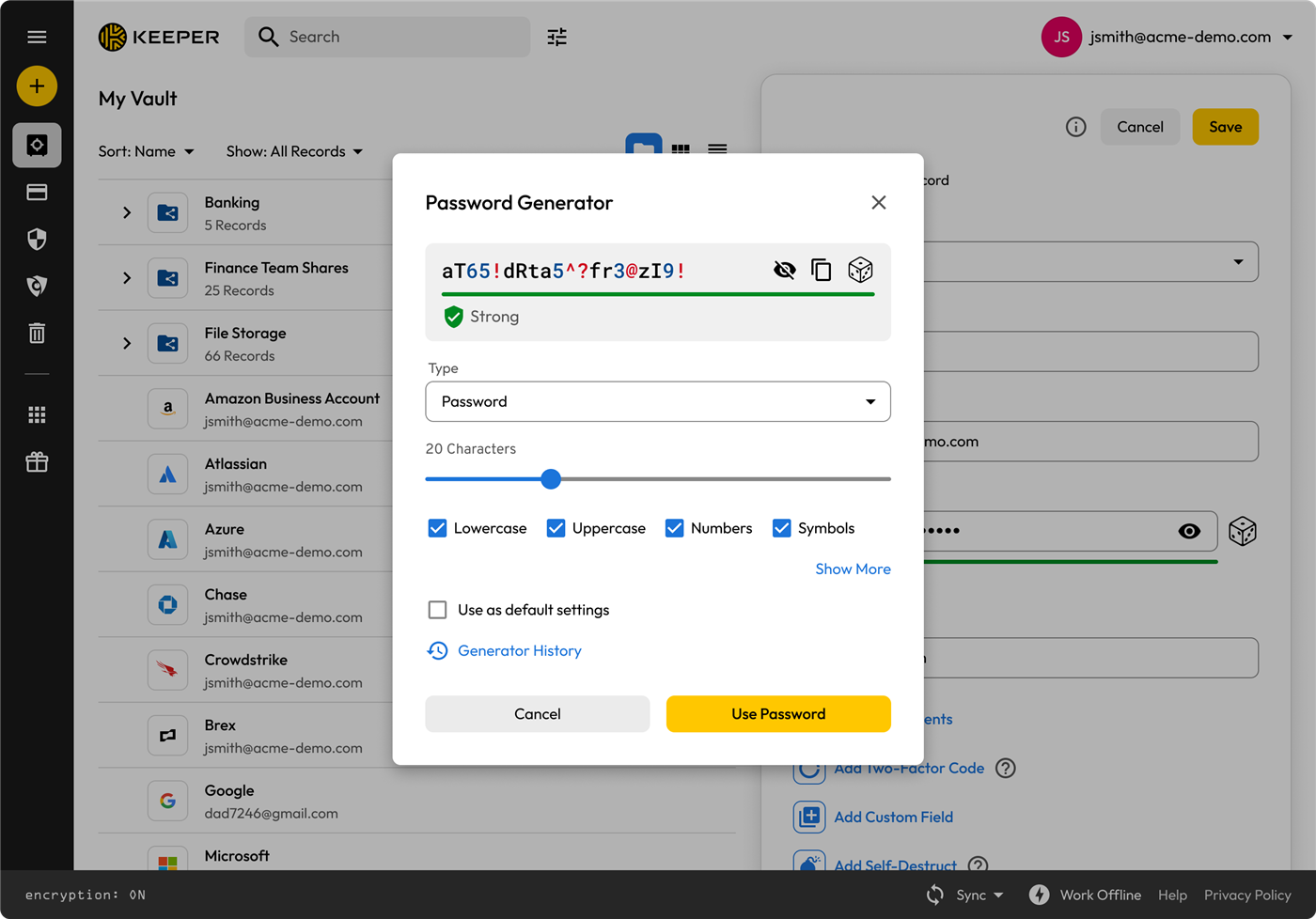
- Long and random, so it cannot be guessed. Which means no human can remember it, which is fine, because Keeper does.
What a passkey is
A passkey replaces the shared secret with a key pair. The private half never leaves the device or the vault. The website only ever holds the public half, which is useless to a thief.
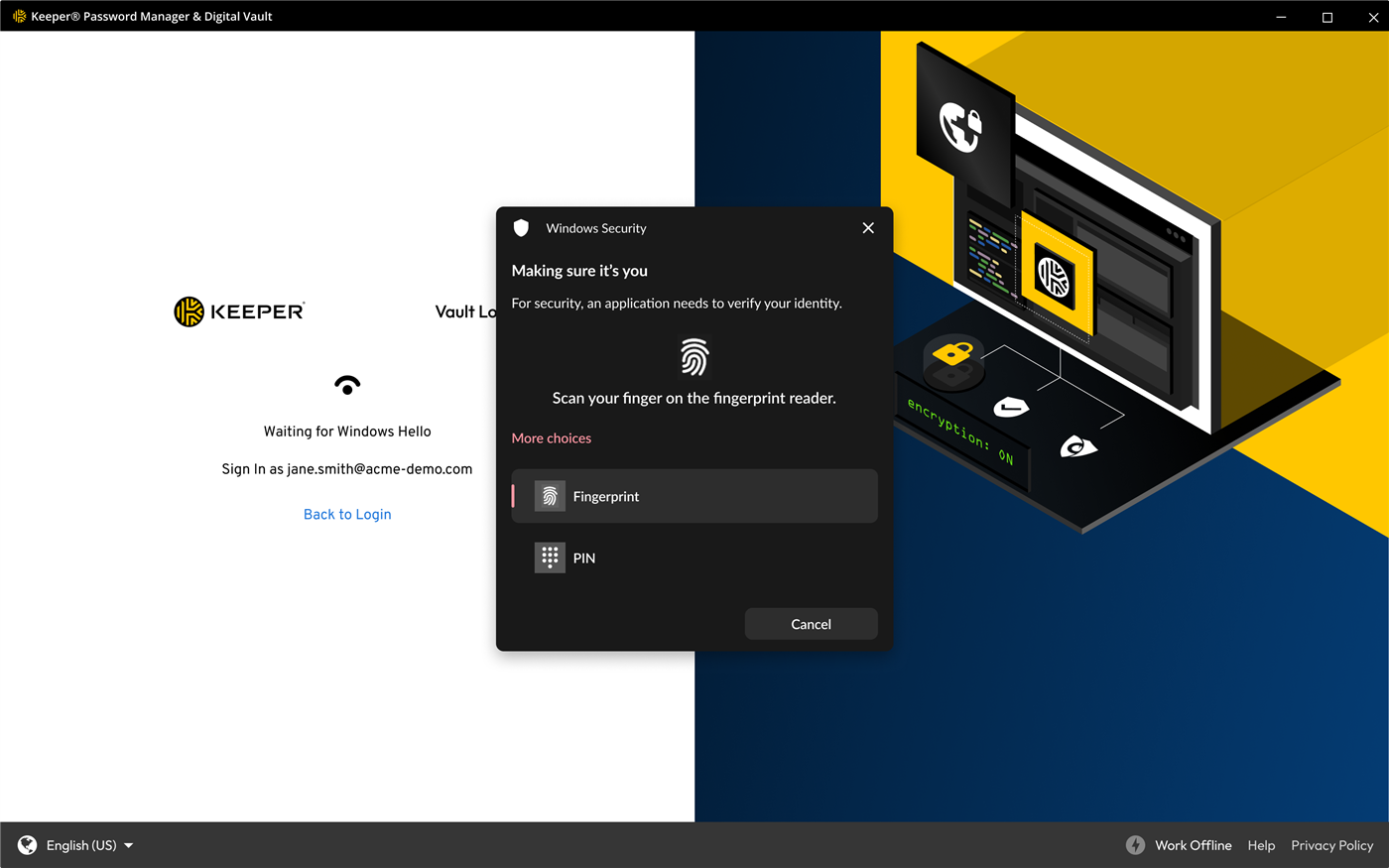
To the customer it is simply a fingerprint, a face, or a device PIN:
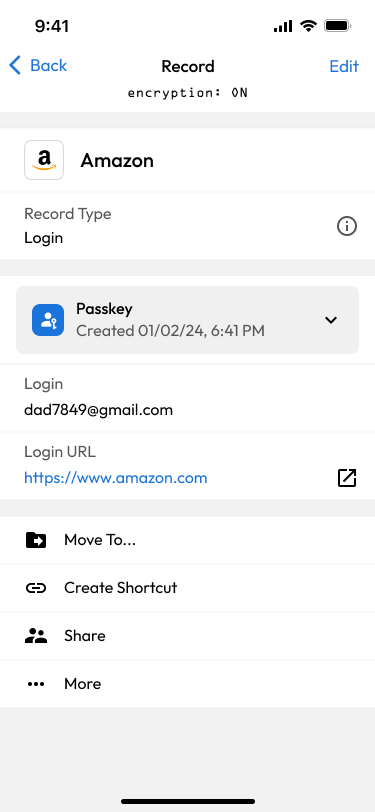
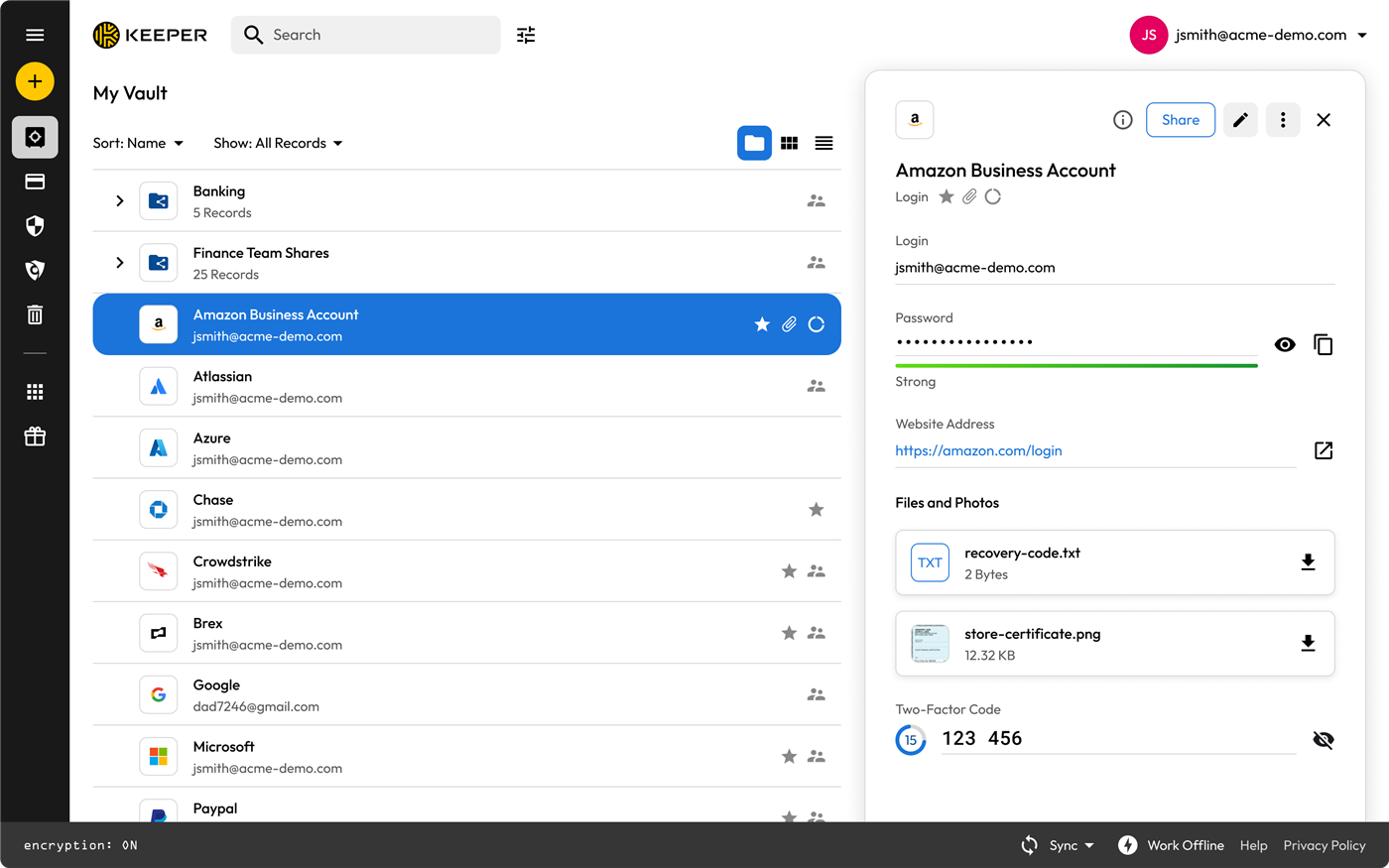
Stored in Keeper, a passkey follows them to every device instead of being stranded on one laptop:
The part that sells it: phishing
A strong password still fails if the customer types it into a convincing fake page. A passkey does not, because the signature is cryptographically tied to the real domain. This is the single most useful thing you can explain to a nervous customer.
So why isn't everything a passkey?
- Not every site supports them yet, though the big ones now do.
- The first one needs hand-holding; after that customers prefer it.
- Shared logins and older systems still need a password.
So the plan is: a unique generated password in Keeper everywhere, and a passkey wherever it is offered.
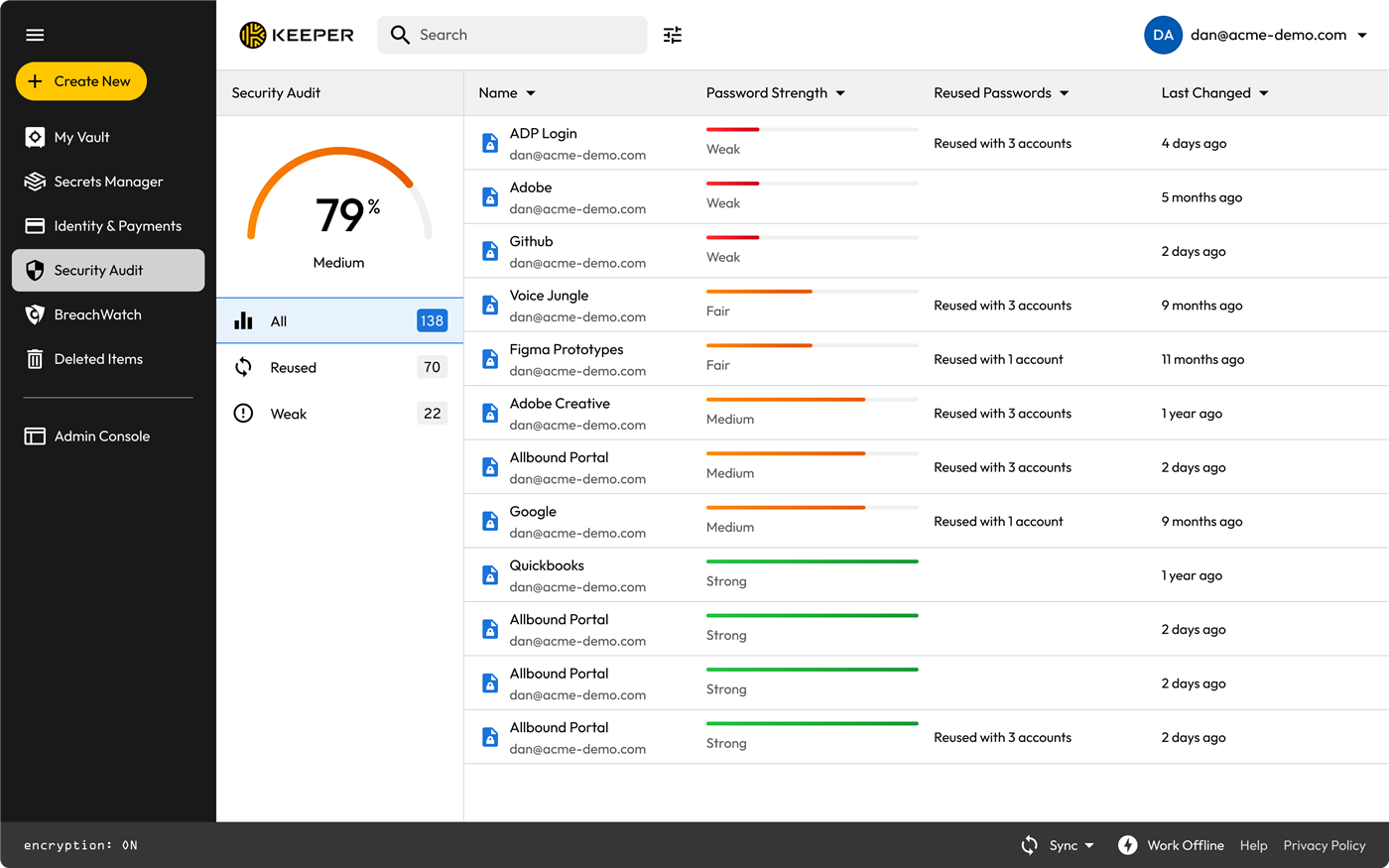
How to grade what you find
Go deeper
- passkeys.dev — the developer/industry reference on how passkeys work
- FIDO Alliance — passkeys — the standards body behind them, good customer-facing explainers
- Keeper docs — Passkeys — creating, storing and using passkeys in Keeper
- Have I Been Pwned — show a customer their own breached accounts — very persuasive
Keeper product screenshots from Keeper Security's partner asset pack. Internal Simple Technologies training material, covered by NDA — not for redistribution.